How to use this page
- Work through Tasks 1–5 and tick each step as you complete it. Your progress and answers are saved in this browser automatically.
- Wherever you see
 Screenshot, capture your lab progress and attach the screenshot right on this page. Add a short explanation for each. For better visibility, don't take screenshots in dark mode.
 - Answer the Task 6 questions, then use Print / Save as PDF to export your answers and screenshots as one submission file.
- Do not delete the resources in this lab — they are required for subsequent labs. Stop your VMs at the end to minimize costs.
Lab Objectives reference
Lab scenario: you have an existing Azure Virtual Desktop environment. Configure a host pool with Microsoft Entra joined session hosts to support a range of functional and business requirements.
Lab dependencies: the Lab 01 — Deploy host pools and session hosts by using the Azure portal completed.
In this lab, you will:
- Task 1 — Deploy additional Azure Virtual Desktop host pool session hosts 20 pts
- Task 2 — Review and configure the host pool properties 15 pts
- Task 3 — Assign the required RBAC role to an Azure Virtual Desktop service principal 15 pts
- Task 4 — Configure scheduled agent updates 15 pts
- Task 5 — Configure RDP properties of the host pool 15 pts
- Task 6 — Summary Questions 20 pts
Task 1: Deploy additional Azure Virtual Desktop host pool session hosts 20 pts
-
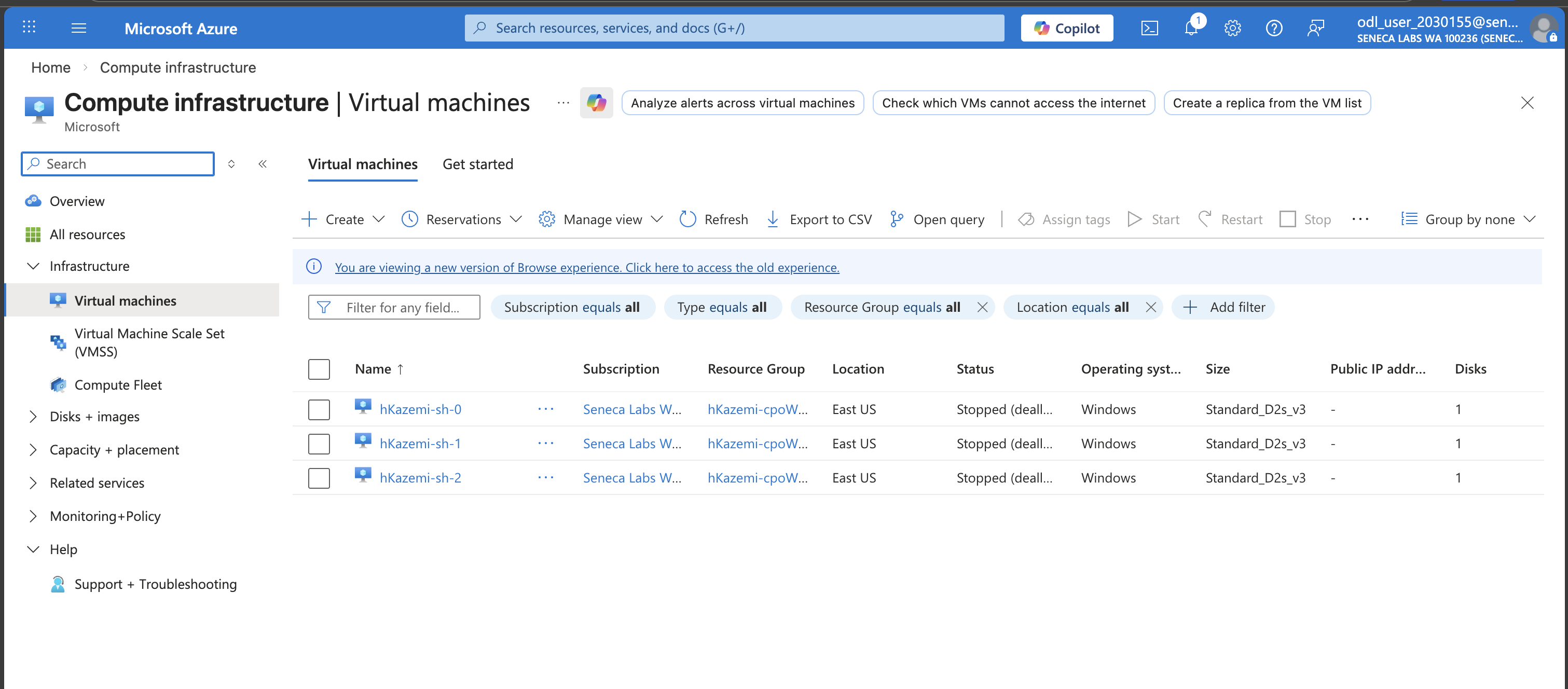
Setting Value Resource group <sName>-cpoF67-21e-RGName prefix <sName>-shVirtual machine location the Azure region of the first two session host VMs Availability options No infrastructure redundancy required Security type Trusted launch virtual machines Image Windows 11 Enterprise multi-session, Version 23H2 + Microsoft 365 Apps Virtual machine size Standard D2s_v3 Number of VMs 1 OS disk type Standard HDD OS disk size Default size (128GB) Boot Diagnostics Enable with managed storage account (recommended) Virtual network cpoF67-vnet11eSubnet hp1-SubnetNetwork security group Basic Public inbound ports No Select which directory you would like to join Microsoft Entra ID Enroll VM with Intune No User name Student Password / Confirm password the same password you used when deploying the session hosts in Lab 01 -
Note: The provisioning process might take about 20 minutes.
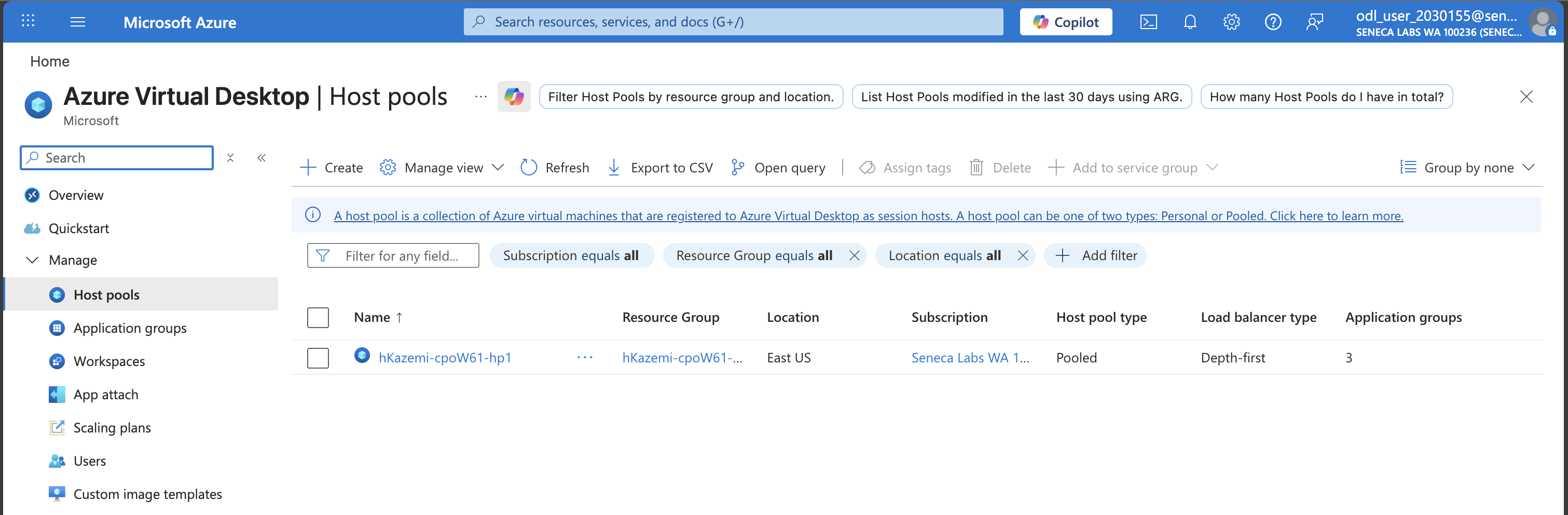
Screenshot must show your Odl_user account, the <sName>-cpoF67-hp1 host pool with its three session hosts including the newly added <sName>-sh session host
Task 2: Review and configure the host pool properties 15 pts
-
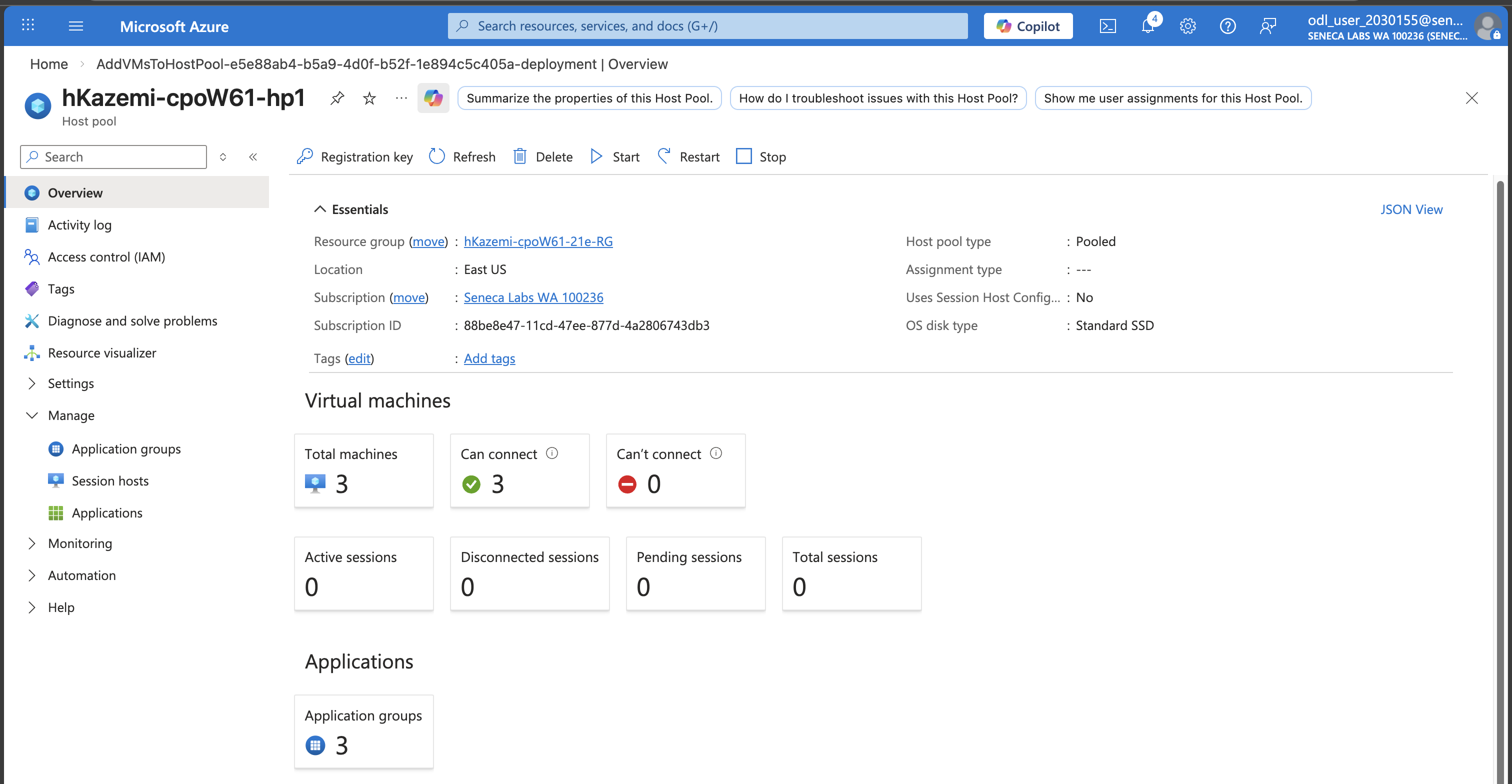
- Preferred app group type: sets the preferred app group type for the host pool to either Desktop or RemoteApp. If end users have both RemoteApp and Desktop apps published to them in the host pool, they will only see the selected app type in their feed.
- Start VM on connect: allows users to start individual virtual machines in the host pool from the deallocated state.
- Validation environment: intended for testing service changes before they are deployed to production.
- Load balancing algorithm: breadth-first distributes new user sessions across all available session hosts; depth-first fills a session host up to the maximum session limit before moving to the next.
-
Screenshot must show your Odl_user account, the <sName>-cpoF67-hp1 Properties page with Depth-first load balancing, max session limit 8, and Start VM on connect set to Yes
Task 3: Assign the required RBAC role to an Azure Virtual Desktop service principal 15 pts
-
Note: If prompted, in the Getting started pane, in the Subscription drop-down list, select your lab subscription and then select Apply.
-
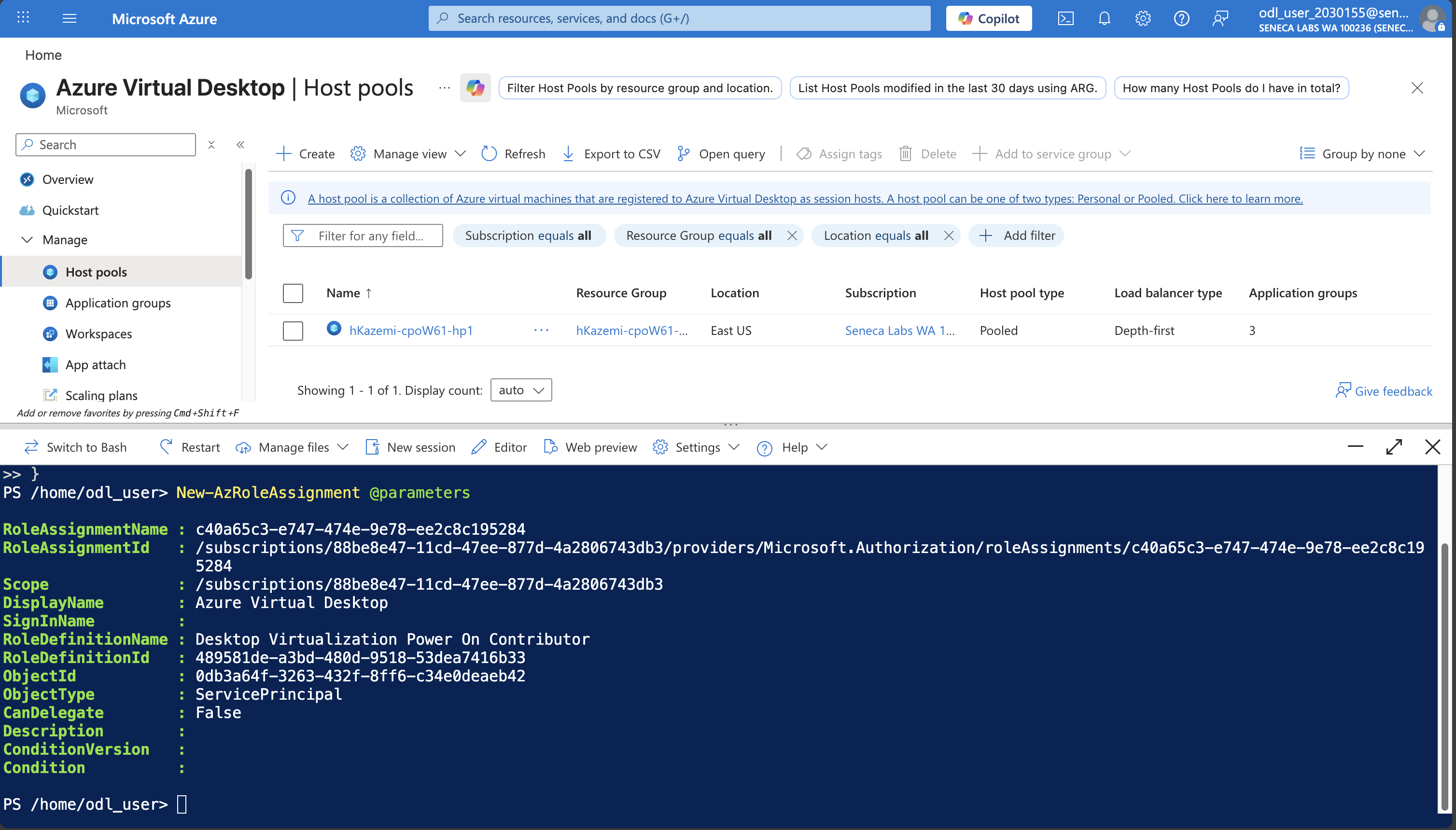
$subId = (Get-AzSubscription).Id
-
$parameters = @{ RoleDefinitionName = "Desktop Virtualization Power On Contributor" ApplicationId = "9cdead84-a844-4324-93f2-b2e6bb768d07" Scope = "/subscriptions/$subId" }
-
New-AzRoleAssignment @parameters Screenshot must show your Odl_user account, the Azure Cloud Shell PowerShell session with the New-AzRoleAssignment @parameters command and its output
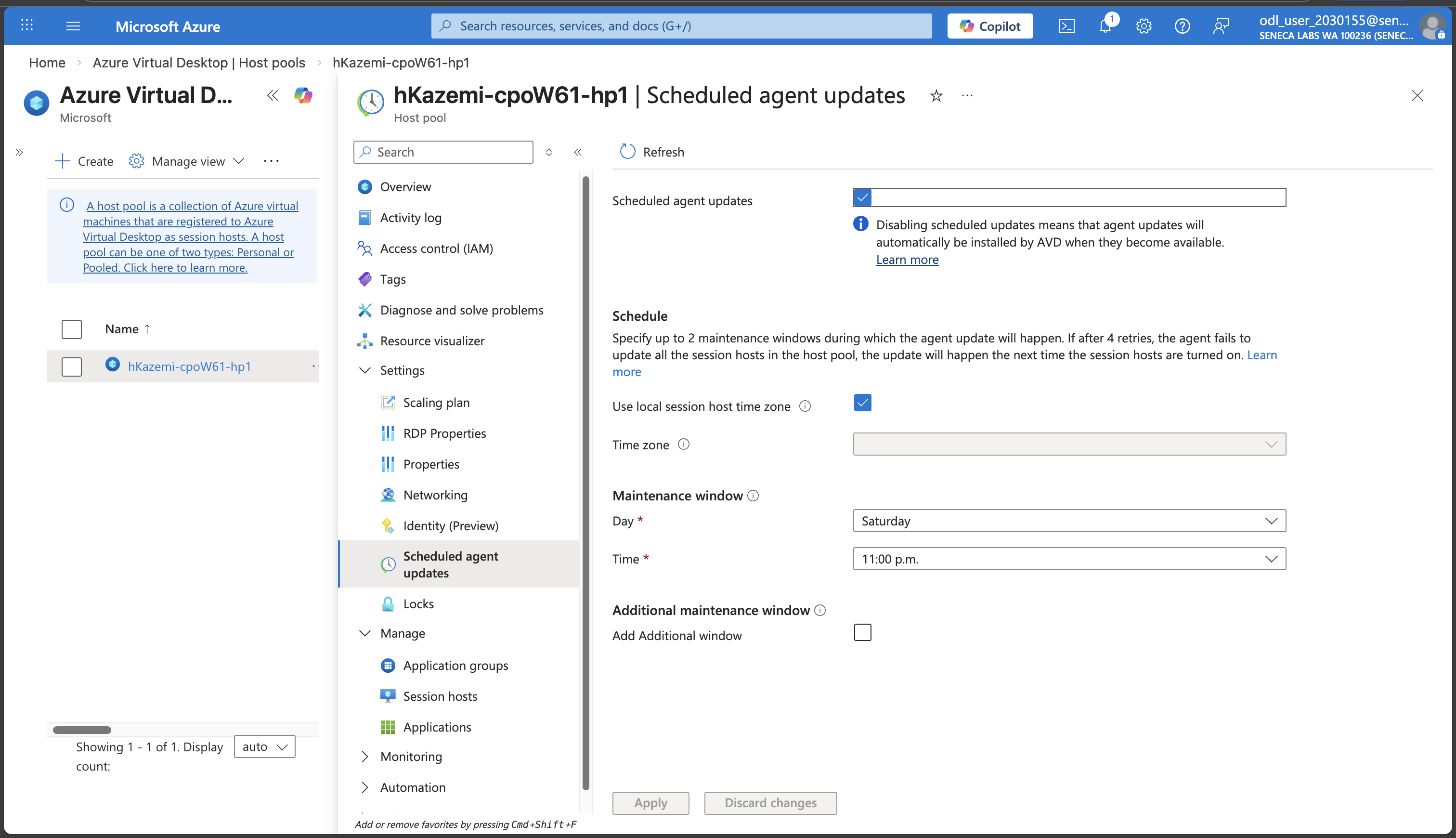
Task 4: Configure scheduled agent updates 15 pts
Note: By default, the AVD agent updates itself automatically whenever a new version is released. The Scheduled Agent Updates feature lets you create up to two maintenance windows for the updates of the AVD agent, side-by-side stack, and Geneva Monitoring agent, so these updates take place outside of business hours.
-
Screenshot must show your Odl_user account, the Scheduled agent updates page of <sName>-cpoF67-hp1 with the Saturday 11:00 PM maintenance window
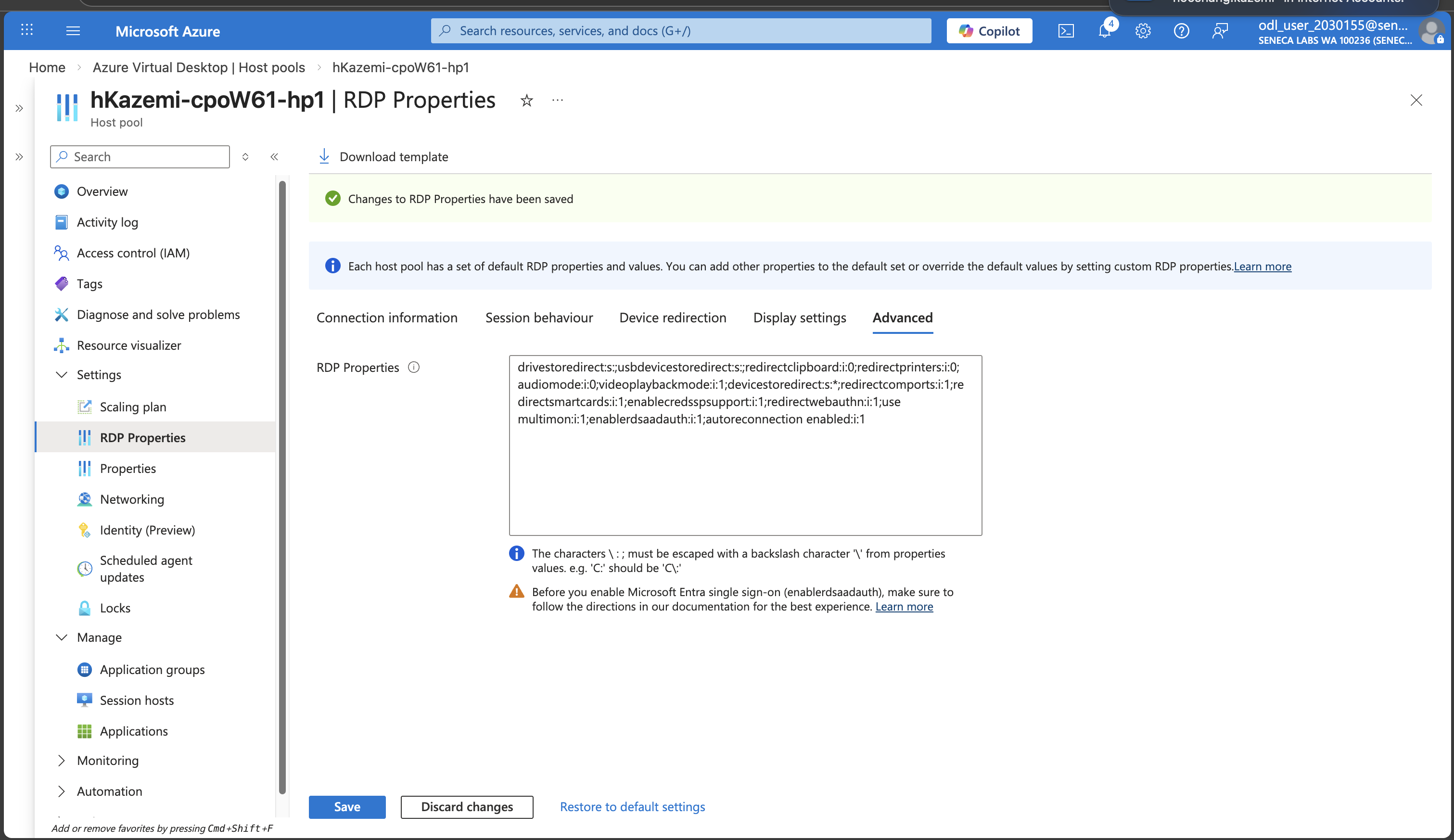
Task 5: Configure RDP properties of the host pool 15 pts
-
- Microsoft Entra single sign-on: determines if connections will leverage Microsoft Entra authentication to sign in to Microsoft Entra-joined session hosts. The client computer does not need to be Microsoft Entra-joined.
- Credential Security Support Provider: controls the use of CredSSP, which forwards user credentials from the client to the session host, but does not support Entra ID authentication.
- Alternate shell: specifies an executable to start whenever a new connection is established. Applies only to session hosts running Windows Server.
- KDC proxy name: proxies Kerberos authentication traffic to Active Directory domain controllers.
Note: three of these options are not applicable in our scenario (Microsoft Entra-joined session hosts without Active Directory Domain Services), so you will configure only the first one — the
enablerdsaadauth:i:valueRDP property. -
- Reconnection: determines whether the client computer will automatically try to reconnect if the connection is dropped.
- Bandwidth auto detect: determines whether to use automatic network bandwidth detection.
- Network auto detect: enables automatic detection of the network type, used with Bandwidth auto detect.
- Compression: determines whether the connection should use bulk compression.
- Video playback: enables RDP efficient multimedia streaming for video playback.
-
Note: By default, redirection applies to all disk drives, including the ones which are mounted after the initial connection is established.
-
Screenshot must show your Odl_user account, the <sName>-cpoF67-hp1 RDP Properties page with the Advanced tab reflecting the Microsoft Entra single sign-on and reconnection settings you saved
Task 6: Summary Questions 20 pts
Minimum 2-3 sentences each — original thinking, your own words!
Your submission preview
Screenshots you attach above and your Task 6 answers appear here. This is exactly what prints/exports as your PDF.
CPO550 Lab 02 - Manage host pools and session hosts by using the Azure portal
Name: . Account: ·
Professor: Dr. Kazemi
Submit compile & export
Sample screenshots reference
These screenshots are just samples. Your screenshots may vary, but they should include similar details underlined.
Important Lab Cleanup Instructions
Do NOT delete any resources created in this lab — they are required for subsequent labs. To minimize costs, stop all virtual machines (VMs) immediately. Restart them only when beginning the next lab.