Connect to Azure Virtual Desktop Session Hosts — Interactive Lab Manual · Fall 2026
How to use this page
Work through Tasks 1–3 and tick each step as you complete it. Your progress and answers are saved in this browser automatically.
Wherever you see Screenshot, capture your lab progress and attach the screenshot right on this page. Add a short explanation for each. For better visibility, don't take screenshots in dark mode.
Answer the Task 4 questions, then use Print / Save as PDF to export your answers and screenshots as one submission file.
Do not delete the resources in this lab — they are required for subsequent labs. Stop your VMs at the end to minimize costs.
Lab Objectives reference
Lab scenario: you have an existing Azure Virtual Desktop environment containing Entra joined session hosts. You need to validate their functionality by connecting to them from a Windows 11 client which is not Microsoft Entra-joined or registered.
Lab dependencies: Lab 01 (Deploy host pools and session hosts by using the Azure portal) and Lab 02 (Manage host pools and session hosts by using the Azure portal) completed.
In this lab, you will:
Task 1 — Adjust RDP properties of the Azure Virtual Desktop host pool 25 pts
Task 2 — Install Microsoft Remote Desktop client on a Windows 11 computer 25 pts
Task 3 — Subscribe to an Azure Virtual Desktop workspace and test Azure Virtual Desktop apps 30 pts
Task 4 — Summary Questions 20 pts
Task 1: Adjust RDP properties of the Azure Virtual Desktop host pool 25 pts
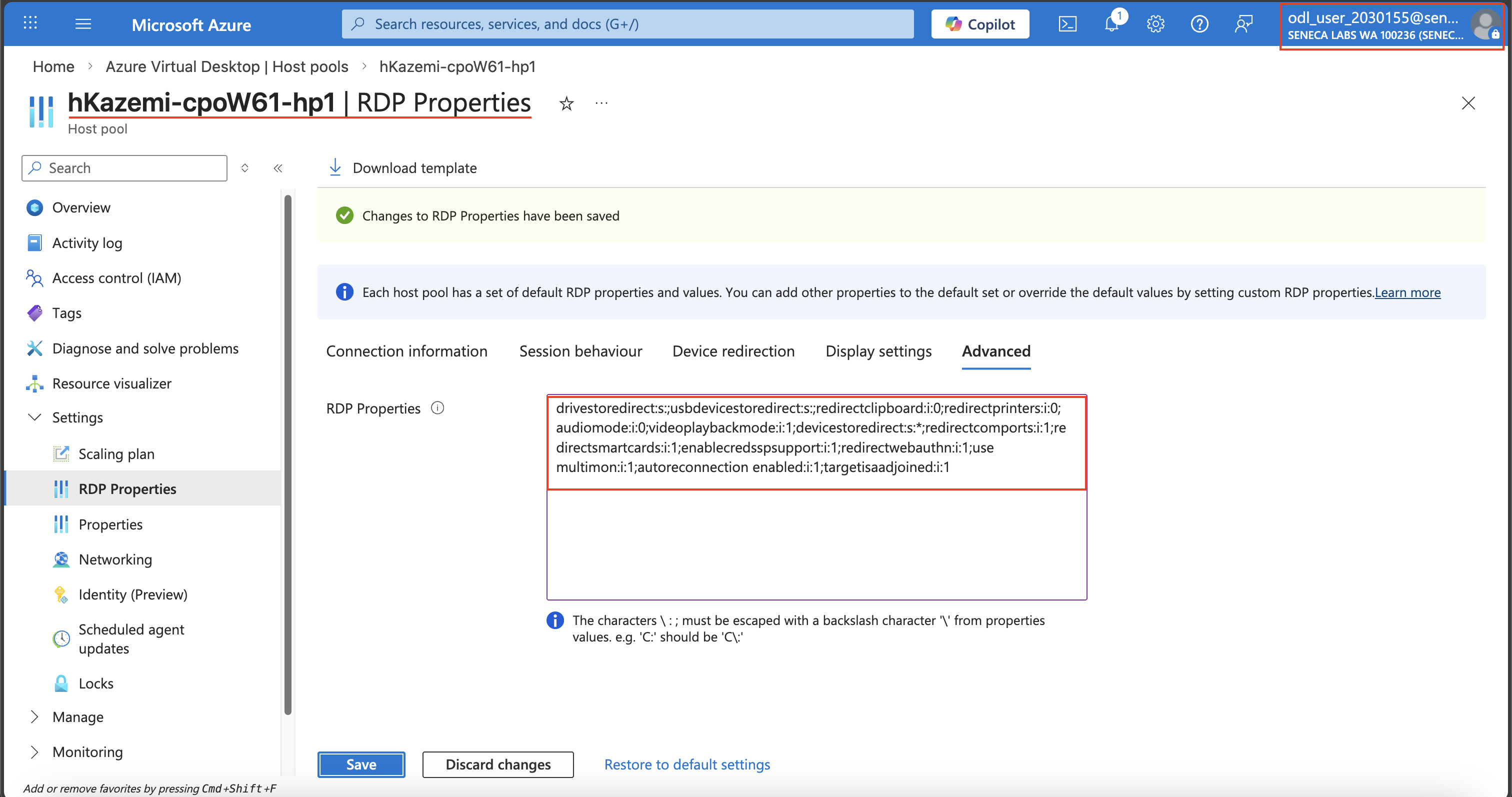
Note: the RDP settings you implemented in the previous lab provide the optimal user experience (via support for single sign-on), however, this requires additional changes described in Configure single sign-on for Azure Virtual Desktop using Microsoft Entra ID authentication. Without these changes, by default, authentication is supported only if the client computer is Microsoft Entra joined, hybrid joined, or registered to the same Microsoft Entra tenant as the session host. Since none of these criteria apply to the lab computer, it is necessary to add targetisaadjoined:i:1 as a custom RDP property to the host pool.
Screenshot must show your Odl_user account, the RDP Properties Advanced tab with targetisaadjoined:i:1 appended and the enablerdsaadauth string removed
Task 2: Install Microsoft Remote Desktop client on a Windows 11 computer 25 pts
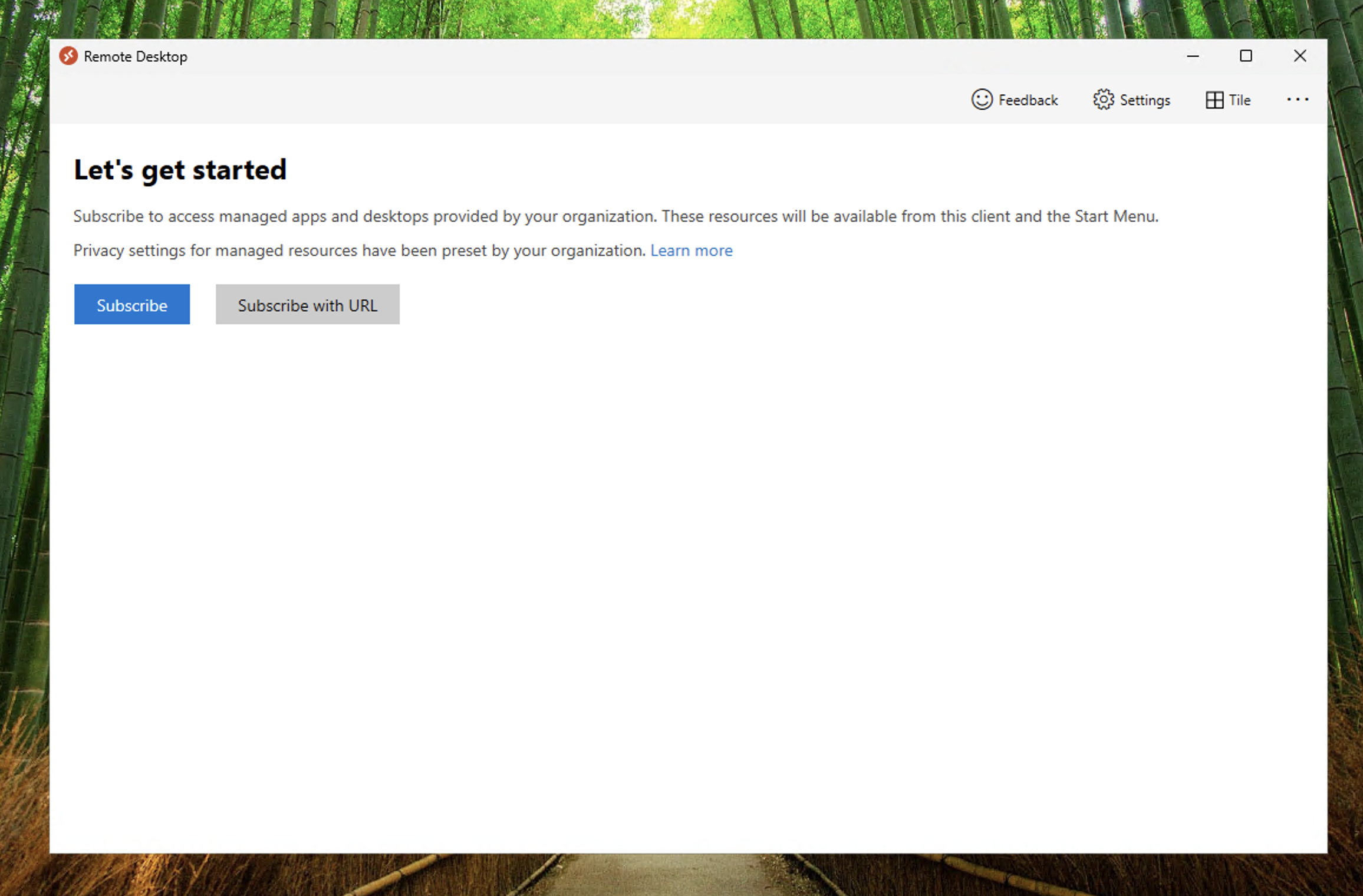
Screenshot must show your Odl_user account, the installed Microsoft Remote Desktop client window
Task 3: Subscribe to an AVD workspace and test Azure Virtual Desktop apps 30 pts
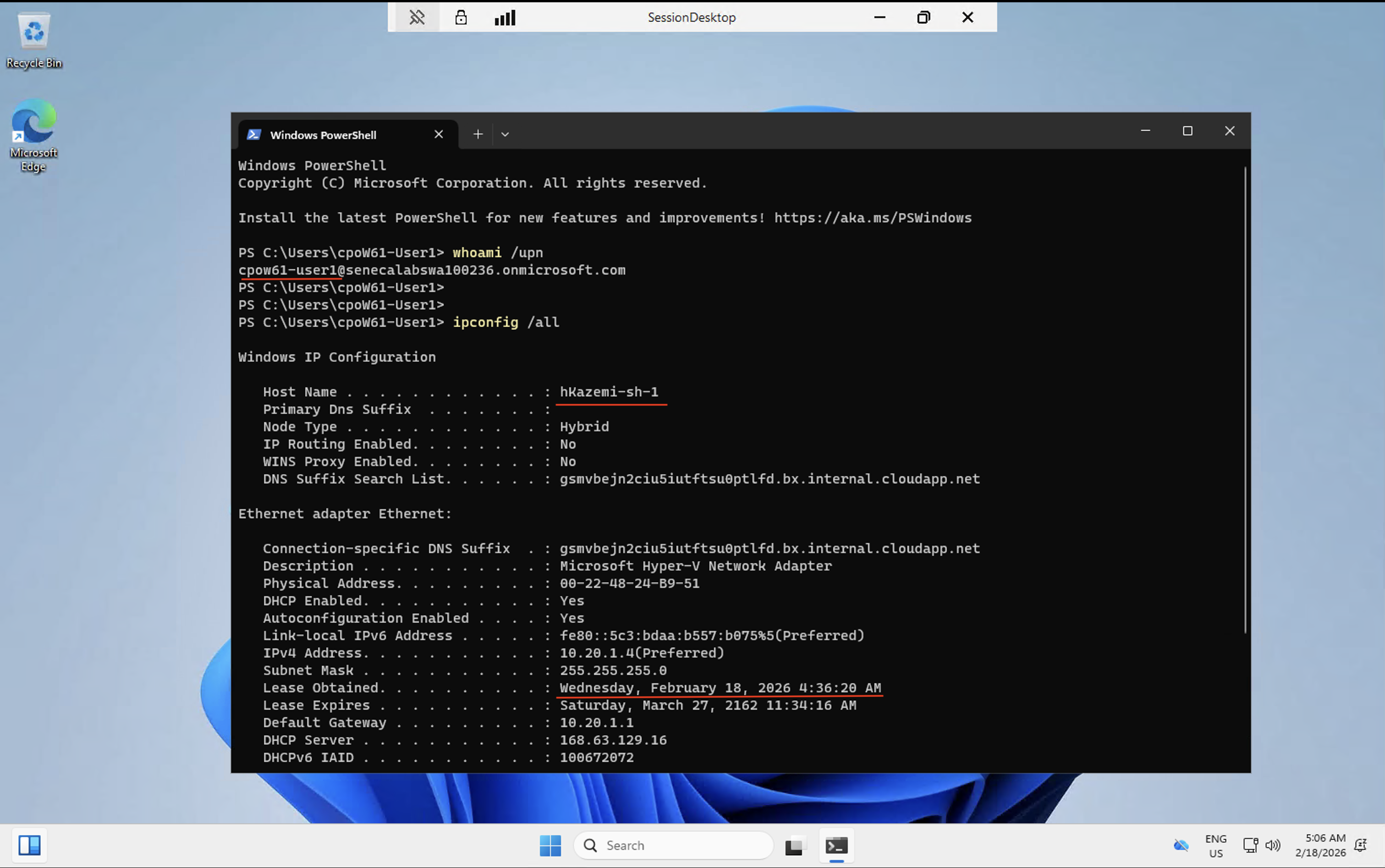
Screenshot must show your Odl_user account, the SessionDesktop remote session with full administrative access
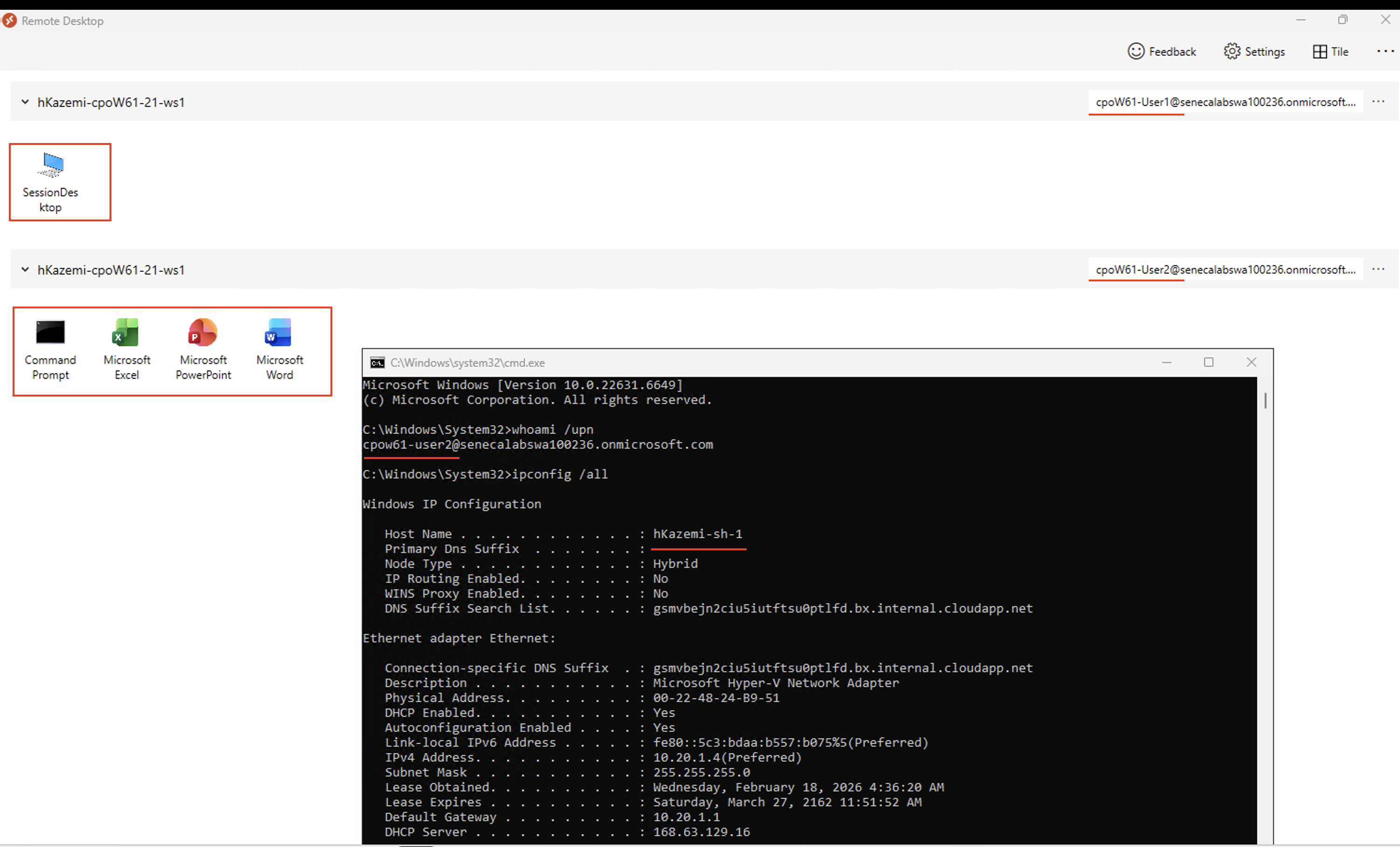
Screenshot must show your Odl_user account, the Command Prompt output of whoami /upn and ipconfig /all in the Remote App session
Task 4: Summary Questions 20 pts
Minimum 2-3 sentences each — original thinking, your own words!
Your submission preview
Screenshots you attach above and your Task 4 answers appear here. This is exactly what prints/exports as your PDF.
CPO550 Lab 04 - Connect to session hosts
Name: . Account: ·
Professor: Dr. Kazemi
Submit compile & export
Sample screenshots reference
These screenshots are just samples. Your screenshots may vary, but they should include similar details underlined.
Task 1Task 2Task 3(10)Task 3(18)
Important Lab Cleanup Instructions
Do NOT delete any resources created in this lab — they are required for subsequent labs. To minimize costs, stop all virtual machines (VMs) immediately. Restart them only when beginning the next lab.

 Screenshot, capture your lab progress and attach the screenshot right on this page. Add a short explanation for each. For better visibility, don't take screenshots in dark mode.