
How to use this page
- Work through Tasks 1–7 and tick each step as you complete it. Your progress and answers are saved in this browser automatically.
- Wherever you see
 Screenshot, capture your lab progress and attach the screenshot right on this page. Add a short explanation for each. For better visibility, don't take screenshots in dark mode.
 - Answer the Task 7 questions, then use Print / Save as PDF to export your answers and screenshots as one submission file.
- Do not delete the resources in this lab — they are required for subsequent labs. Stop your VMs at the end to minimize costs.
Lab Objectives reference
Lab scenario: you have an Azure Virtual Desktop environment whose usage changes on a regular basis. You want to minimize the cost by leveraging the autoscale scaling plans functionality.
Lab dependencies: completion of Lab 01 (deploy host pools and session hosts), Lab 02 (manage host pools and session hosts), and Lab 04 (connect to session hosts).
In this lab, you will:
- Task 1 — Assign the required RBAC role to an Azure Virtual Desktop service principal 10 pts
- Task 2 — Stop and deallocate all session hosts 10 pts
- Task 3 — Adjust the host pool settings 15 pts
- Task 4 — Create a scaling plan 15 pts
- Task 5 — Evaluate the autoscaling functionality 15 pts
- Task 6 — Disable host pool autoscaling 15 pts
- Task 7 — Summary Questions 20 pts
Task 1: Assign the required RBAC role to an Azure Virtual Desktop service principal 10 pts
Note: for autoscale plans to work, you need to grant the Azure Virtual Desktop service principal the permissions to manage the power state of the session host VMs. These permissions can be granted by using the built-in Desktop Virtualization Power On Off Contributor RBAC role. The role assignment must be performed at the subscription scope.
-
$subId = (Get-AzSubscription).Id
-
$parameters = @{ RoleDefinitionName = "Desktop Virtualization Power On Off Contributor" ApplicationId = "9cdead84-a844-4324-93f2-b2e6bb768d07" Scope = "/subscriptions/$subId" }
-
New-AzRoleAssignment @parameters
Task 2: Stop and deallocate all session hosts 10 pts
Note: to evaluate the autoscaling functionality, you will stop and deallocate all of the session hosts in the Azure Virtual Desktop environment.
-
Note: you might need to select the ellipsis (...) icon in the toolbar to display the Stop button.
Note: do not wait until the session hosts are stopped and deallocated but instead proceed to the next task. Stopping and deallocating session hosts might take about 2 minutes.
Task 3: Adjust the host pool settings 15 pts
-
Note: when using autoscale for pooled host pools, you must have a configured MaxSessionLimit parameter for that host pool. In this lab, you will set it artificially low in order to facilitate illustrating the autoscaling functionality.
Task 4: Create a scaling plan 15 pts
-
Setting Value Subscription the name of the Azure subscription you are using in this lab Resource group the name of a new resource group <sName>-cpoF67-412-RGScaling plan name <sName>-ScalingPlanRegion the name of the Azure region where you deployed the Azure Virtual Desktop environment Friendly name <sName>-ScalingPlanTime zone the local time zone of the Azure region where you deployed the Azure Virtual Desktop environment (UTC-05:00) Eastern Time (US & Canada) Host pool type Pooled Scaling method Power management autoscaling Note: leave the Exclusion tag property not set. In general, you can use this feature to exclude Azure VMs with arbitrarily set tags from autoscaling.
-
Note: schedules allow you to define ramp-up hours, peak hours, ramp-down hours, and off-peak hours for week days and specify autoscaling triggers. A scaling plan must include an associated schedule for at least one day of the week.
-
Setting Value Time zone the local time zone of your Azure Virtual Desktop environment Schedule name <sName>-week_scheduleRepeat on 7 selected (select all days of the week) Note: the schedule effectively covers every day of the week, which will facilitate evaluating the outcome of autoscaling.
-
Setting Value Start time (12 hour system) your current time minus 1 hour Load balancing algorithm Breadth-first Minimum percentage of hosts (%) 30 Capacity threshold (%) 60 Note: for pooled host pools, autoscale ignores existing load-balancing algorithms in your host pool settings and instead applies load balancing based on your schedule configuration.
Note: the Minimum percentage of hosts setting designates the minimum percentage of session host virtual machines to start for ramp-up and peak hours. For example, if Minimum percentage of hosts is 30% and the total number of session hosts in your host pool is 3, autoscale will ensure a minimum of 1 session host is available. Autoscale rounds up to the nearest whole number.
Note: the Capacity threshold setting is the percentage of used host pool capacity that will be considered to evaluate whether to turn on/off virtual machines during the ramp-up and peak hours. For example, if capacity threshold is 60% and your host pool capacity is 1 session (with one host running), autoscale will turn on additional session hosts once the load of the host pool exceeds 60% (it's 100% in this case).
-
Setting Value Start time (12 hour system) your current time plus 1 hour Load balancing algorithm Depth-first Capacity threshold (%) 60 Note: the Capacity threshold (%) setting is shared between the Ramp-up and Peak hours settings.
-
Setting Value Start time (12 hour system) your current time plus 2 hours Load balancing algorithm Depth-first Minimum percentage of active hosts (%) 10 Capacity threshold (%) 80 Force sign out users No Stop VMs when VMs have no active or disconnected sessions Note: the Minimum percentage of active hosts (%) setting designates the minimum percentage of session host virtual machines that you would like to get to for ramp-down and off-peak hours. For example, if Minimum percentage of active hosts (%) is set to 10% and the total number of session hosts in your host pool is 3, autoscale will ensure a minimum of 1 session host is available to take user connections.
Note: the Capacity threshold (%) setting designates the percentage of used host pool capacity that will be considered to evaluate whether to turn off virtual machines during the ramp-down and off-peak hours. For example, with 1 user connection and 3 hosts running, if capacity threshold is specified as 80%, autoscale would turn off 1 host (resulting in 50% used host pool capacity).
Note: in general, autoscale will stop and deallocate session hosts according to the following rules: the used host pool capacity is below the capacity threshold; turning off session hosts will not result in exceeding the capacity threshold; autoscale only turns off session hosts with no user sessions on them (unless the scaling plan is in ramp-down phase and you've enabled the setting to force user logoff); pooled autoscale will not turn off session hosts in the ramp-up phase to ensure that user experience is not impacted.
-
Setting Value Start time (12 hour system) your current time plus 3 hours Load balancing algorithm Depth-first Capacity threshold (%) 80 Note: the Capacity threshold setting is shared between the Ramp-down and Off-peak hours settings.
-
Note: wait for the autoscale configuration to complete. This typically takes just a few seconds.
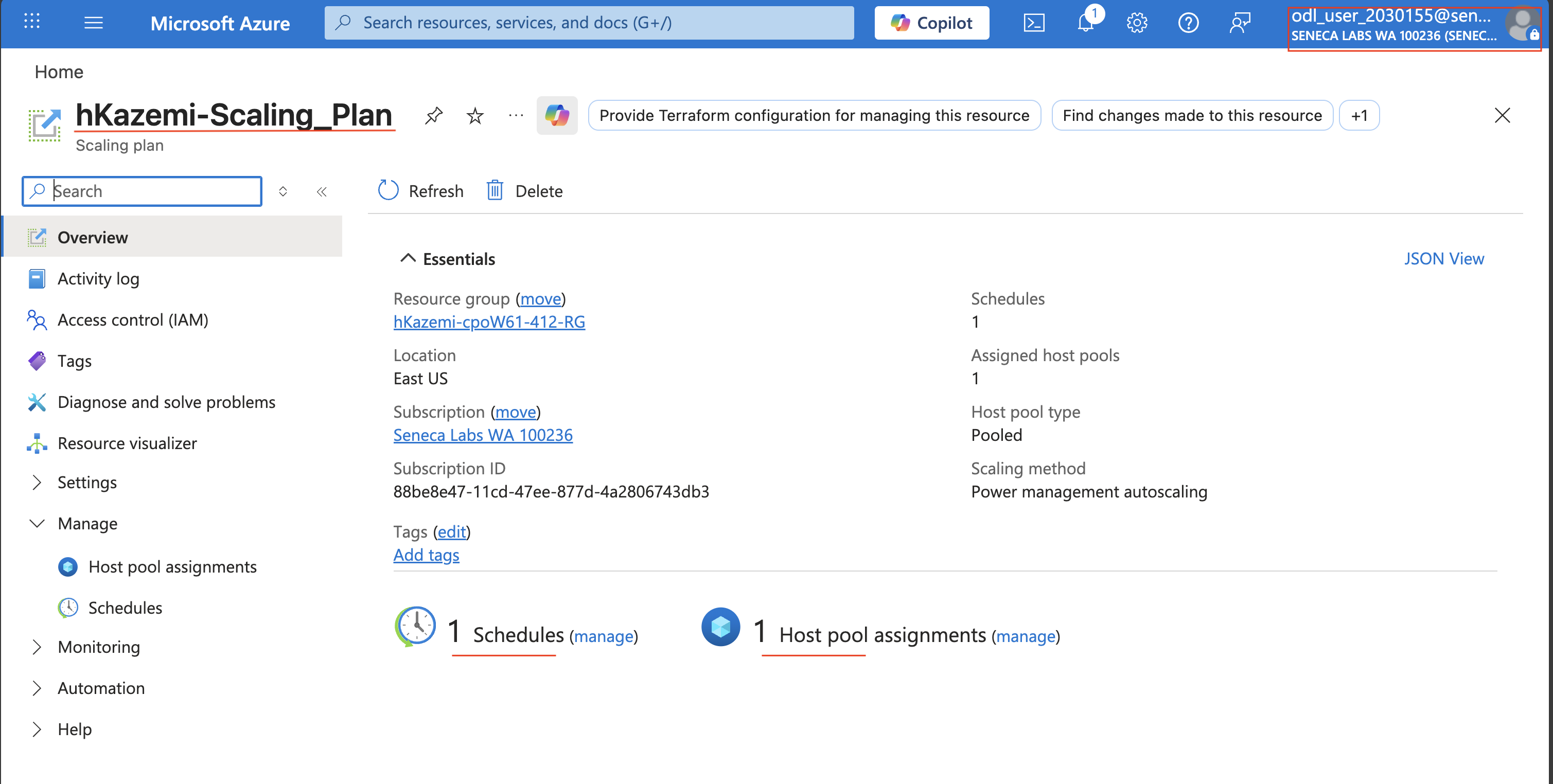
Screenshot must show your Odl_user account, the <sName>-ScalingPlan scaling plan with its <sName>-week_schedule schedule and the <sName>-cpoF67-hp1 host pool assignment with autoscale enabled
Task 5: Evaluate the autoscaling functionality 15 pts
Note: you will start by evaluating the Ramp-up settings.
-
Note: you might need to wait a couple of minutes before the first session host reaches the Running state.
Note: this is expected, since according to the Ramp-up settings of the newly created scaling plan, at least one session host should be always online. At this point, the host pool capacity is 1 (since there is only 1 host running), but the used host pool capacity is 0%, since there are no user connections.
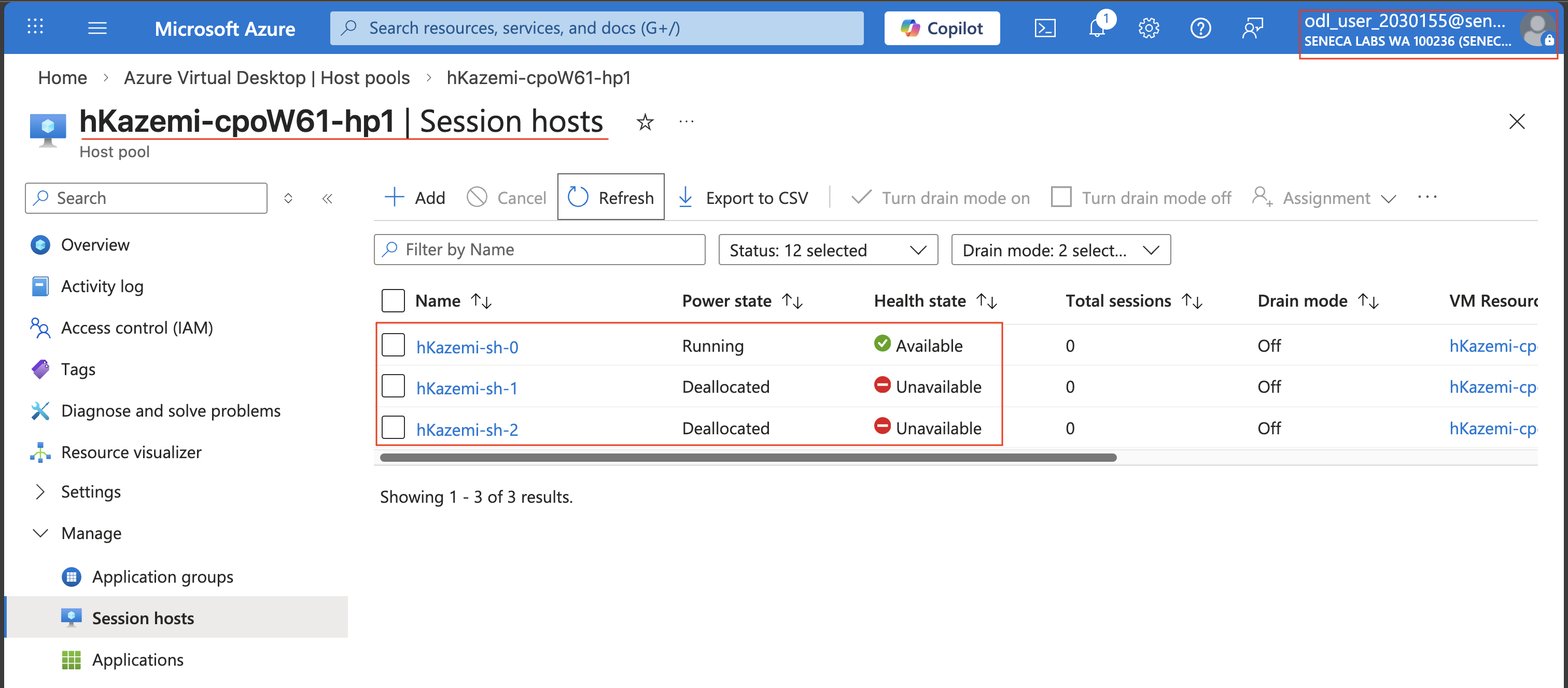
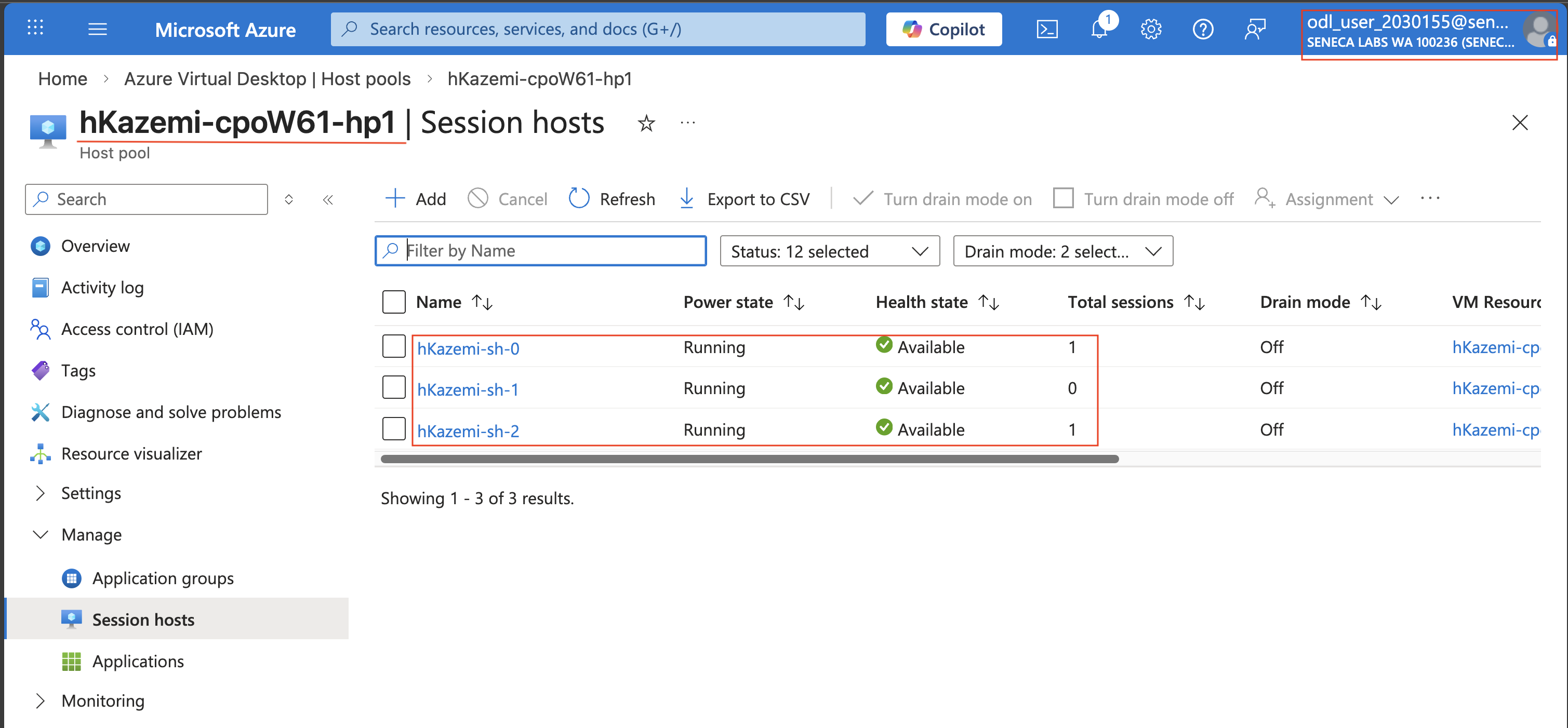
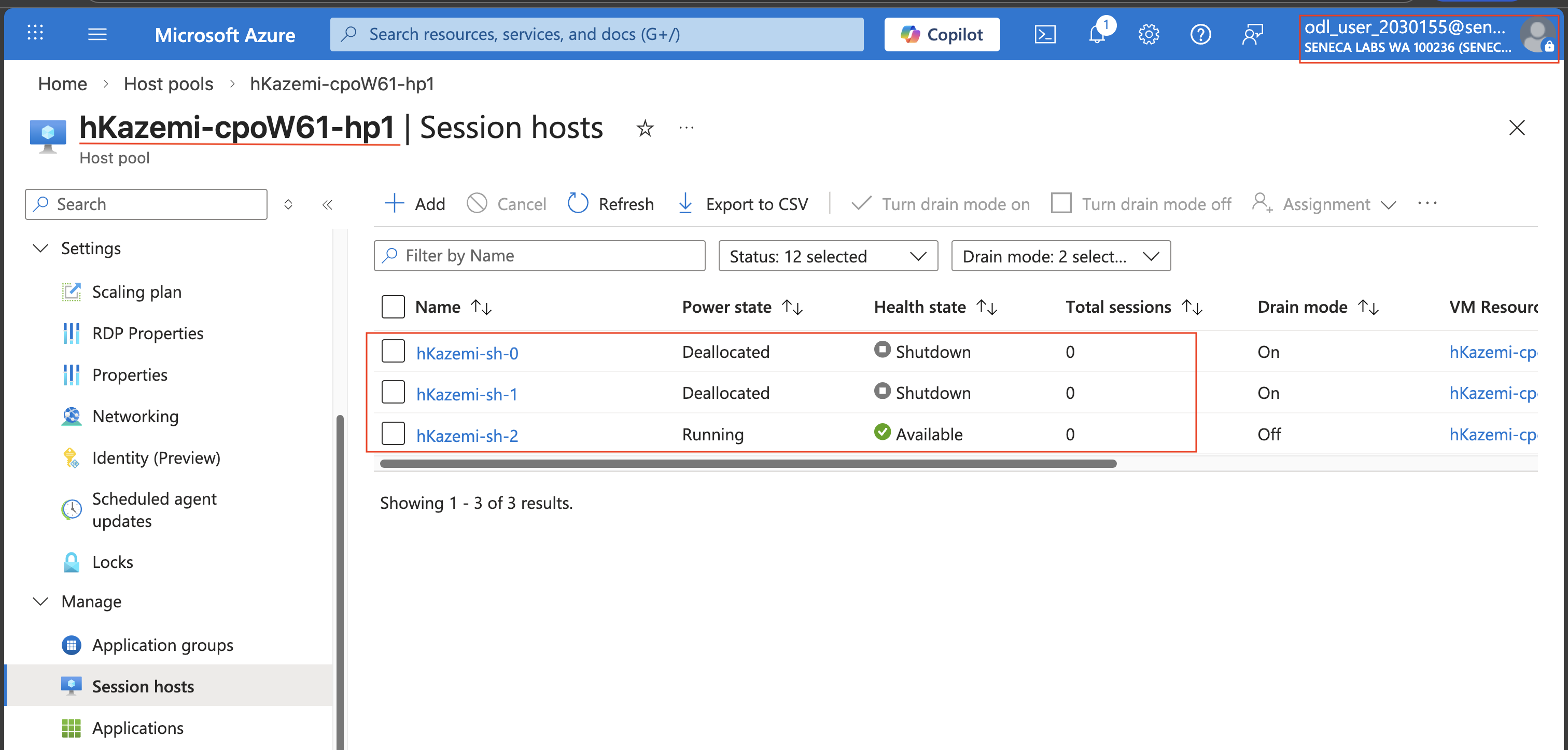
Screenshot must show your Odl_user account, the <sName>-cpoF67-hp1 Session hosts page with one session host in the Running state and the other session hosts stopped (deallocated)
-
Note: next, you will evaluate the Ramp-up and Peak hours capacity threshold setting by launching a single user session. We can evaluate this even outside of the Peak hours window, since the two stages share the same capacity threshold.
-
Note: at this point, the used host pool capacity is 100%, which is greater than the capacity threshold (60%). This should result in autoscaling turning on another host, which will bring the used host pool capacity to 50%. Since this is below the capacity threshold, the third host will remain stopped/deallocated. You will verify this next.
-
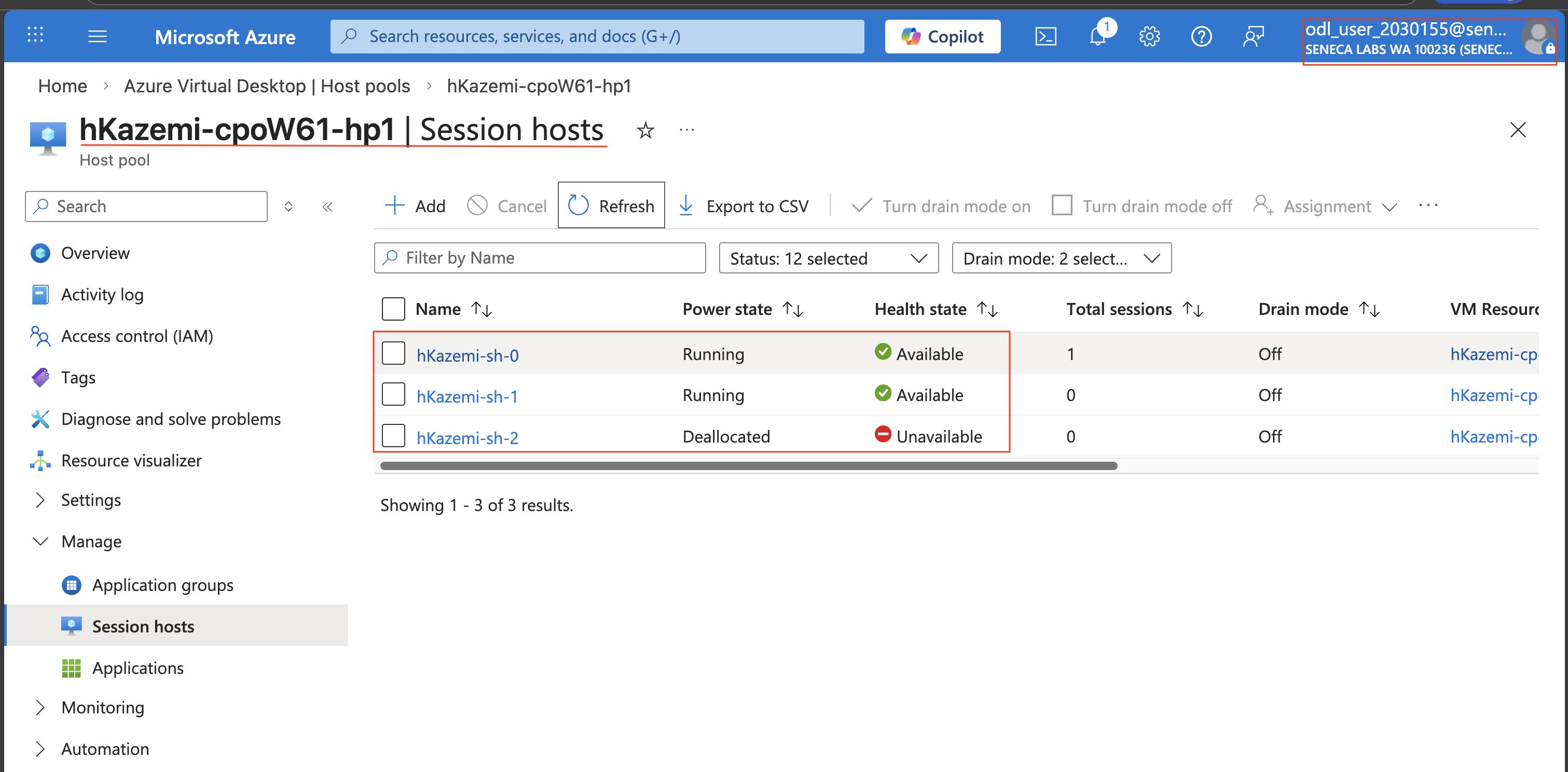
Screenshot must show your Odl_user account, the <sName>-cpoF67-hp1 Session hosts page with two session hosts in the Running state
-
Note: see the samples at the end of the instruction for more clarity on what you need to include in your screenshots.
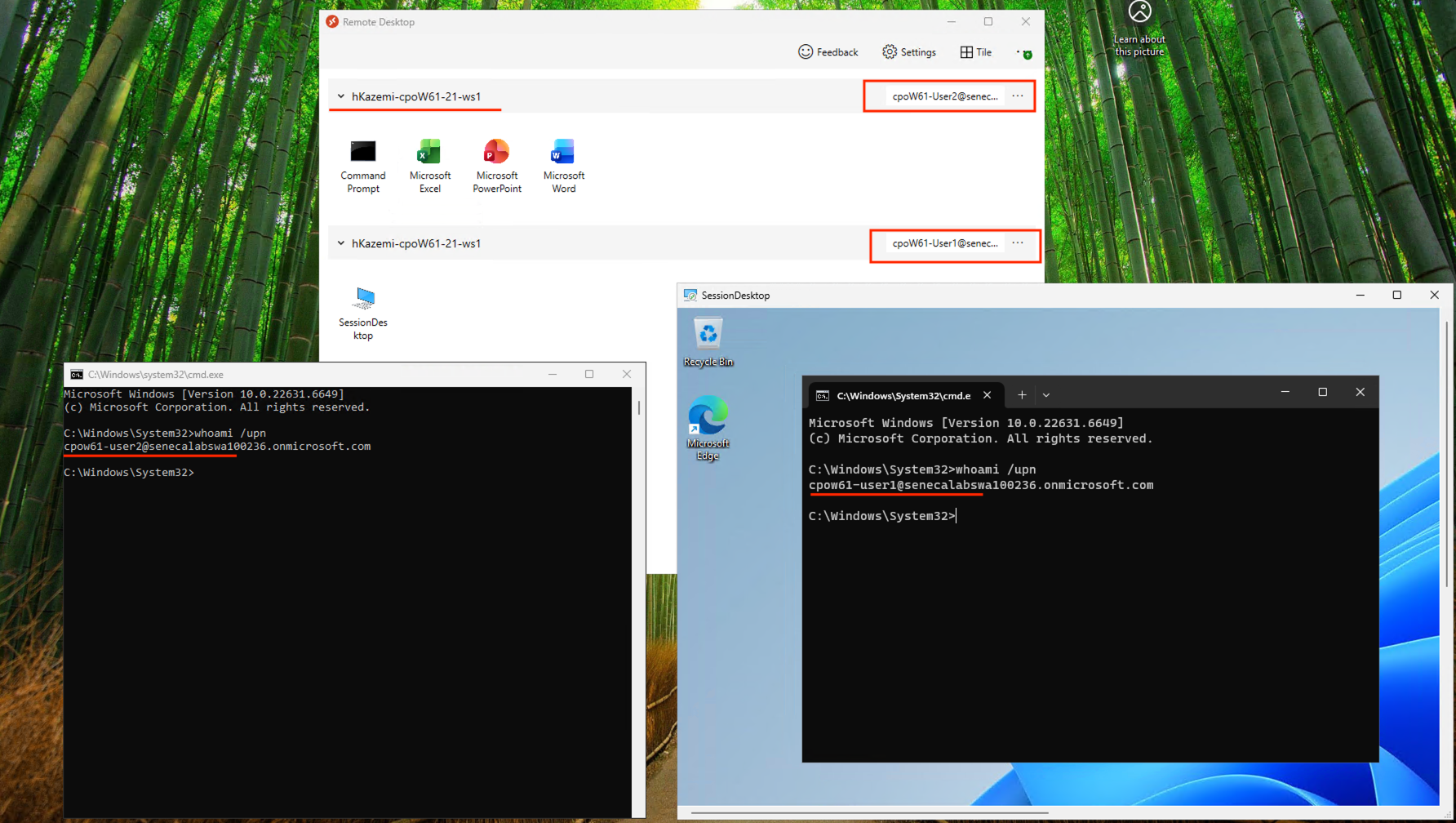
Screenshot must show your Odl_user account, the User1 SessionDesktop session with the Command Prompt window displaying the whoami /upn output for cpoF67-User1-<sName>
-
Screenshot must show your Odl_user account, the <sName>-cpoF67-hp1 Session hosts page with all three session hosts in the Running state
-
Note: next, you will evaluate the Ramp-down capacity threshold setting by adjusting its time window.
-
Note: you might need to adjust the value of Start time (12 hour system) of the Peak hours phase.
-
logoff
-
Note: it may take 1-2 minutes before the session host is shut down.
Screenshot must show your Odl_user account, the <sName>-cpoF67-hp1 Session hosts page with only one session host in the Running state after the Ramp-down evaluation
Task 6: Disable host pool autoscaling 15 pts
Note: to ensure that the autoscaling configuration will not affect other labs, you will remove the host pool assignment of the scaling plan you implemented in this lab.
Task 7: Summary Questions 20 pts
Minimum 2-3 sentences each — original thinking, your own words!
Your submission preview
Screenshots you attach above and your Task 7 answers appear here. This is exactly what prints/exports as your PDF.
CPO550 Lab 05 - Implement and monitor autoscaling of session hosts
Name: . Account: ·
Professor: Dr. Kazemi
Submit compile & export
Sample screenshots reference
These screenshots are just samples. Your screenshots may vary, but they should include similar details underlined.
Important Lab Cleanup Instructions
Do NOT delete any resources created in this lab — they are required for subsequent labs. To minimize costs, stop all virtual machines (VMs) immediately. Restart them only when beginning the next lab.