Configure Conditional Access policies for AVD — Interactive Lab Manual · Fall 2026
How to use this page
Work through Tasks 1–5 and tick each step as you complete it. Your progress and answers are saved in this browser automatically.
Wherever you see Screenshot, capture your lab progress and attach the screenshot right on this page. Add a short explanation for each. For better visibility, don't take screenshots in dark mode.
Answer the Task 6 questions, then use Print / Save as PDF to export your answers and screenshots as one submission file.
This is the final lab of the course — delete all your resources at the end (see the cleanup instructions) to avoid Azure charges.
Lab Objectives reference
Lab scenario: control access to a deployment of Azure Virtual Desktop in an Active Directory Domain Services (AD DS) environment by using Microsoft Entra ID (Microsoft Entra) conditional access.
Lab dependencies: Lab 01 (Deploy host pools and session hosts by using the Azure portal), Lab 07 (Create custom session host images by using image templates), and a Microsoft Entra Premium P2 license active on your Odl_user account.
Task 3 — Register a user for Microsoft Entra MFA 15 pts
Task 4 — Create a Microsoft Entra-based Conditional Access policy for all Azure Virtual Desktop connections 15 pts
Task 5 — Test the Microsoft Entra-based Conditional Access policy for all Azure Virtual Desktop connections 20 pts
Task 6 — Summary Questions 20 pts
Task 1: Configure Microsoft Entra Premium P2 licensing 10 pts
Note: Premium P1 or P2 licensing of Microsoft Entra is required to implement Microsoft Entra Conditional Access. A P2 license should be active on your account before attempting this lab.
Note: Record this value — you will need it later in this lab.
Note: The Usage location property must be set in order to assign Microsoft Entra Premium P2 licenses to user accounts.
Note: The Microsoft Entra P2 license will be available in your ODL account during the second half of the semester. Your instructor will provide more information about this in class.
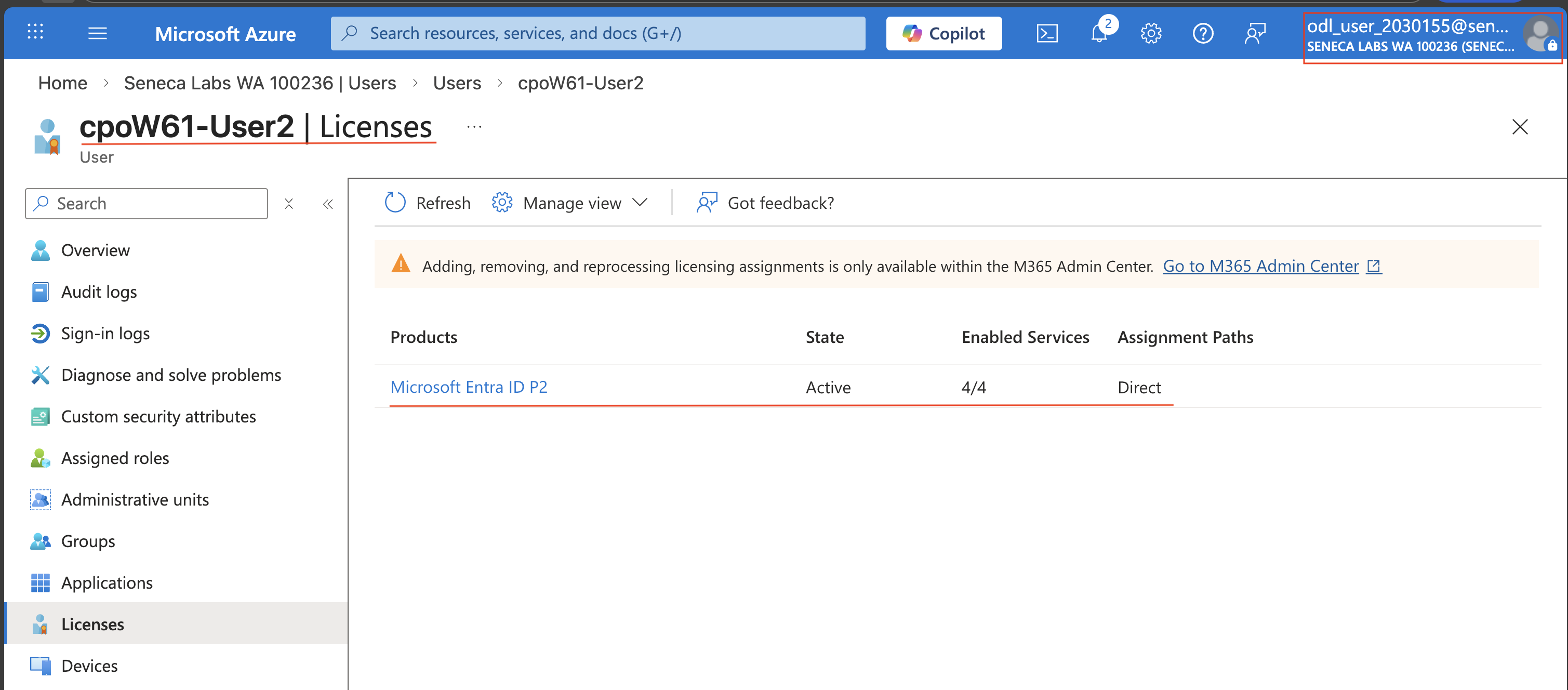
Screenshot must show your Odl_user account, the cpoF67-User2 account with the Microsoft Entra ID P2 license assigned and its state Active
Task 2: Configure Microsoft Entra Multi-Factor Authentication (MFA) 20 pts
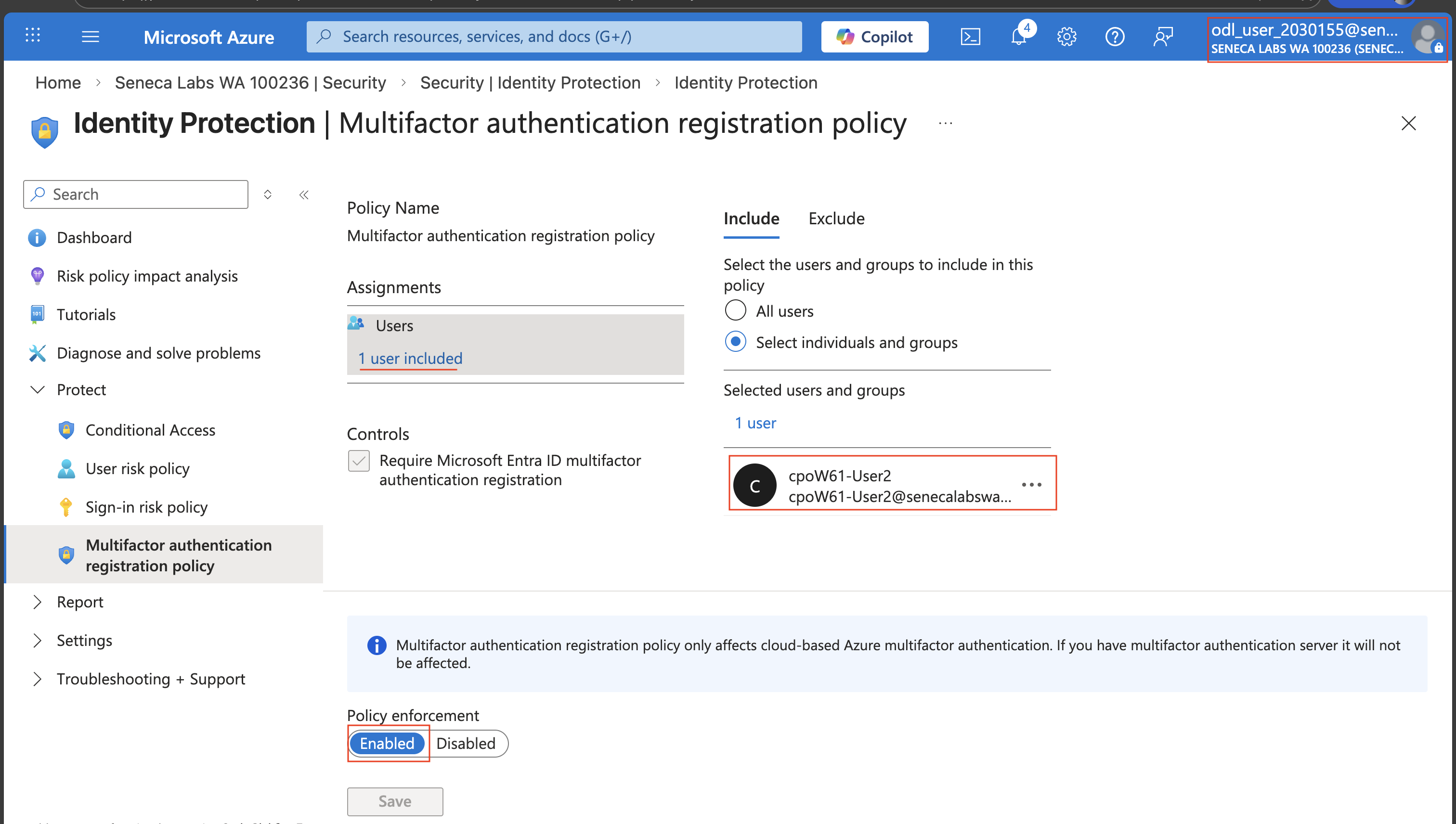
Screenshot must show your Odl_user account, the MFA registration policy assigned to cpoF67-User2 with the Enforce policy switch set to On
Task 3: Register a user for Microsoft Entra MFA 15 pts
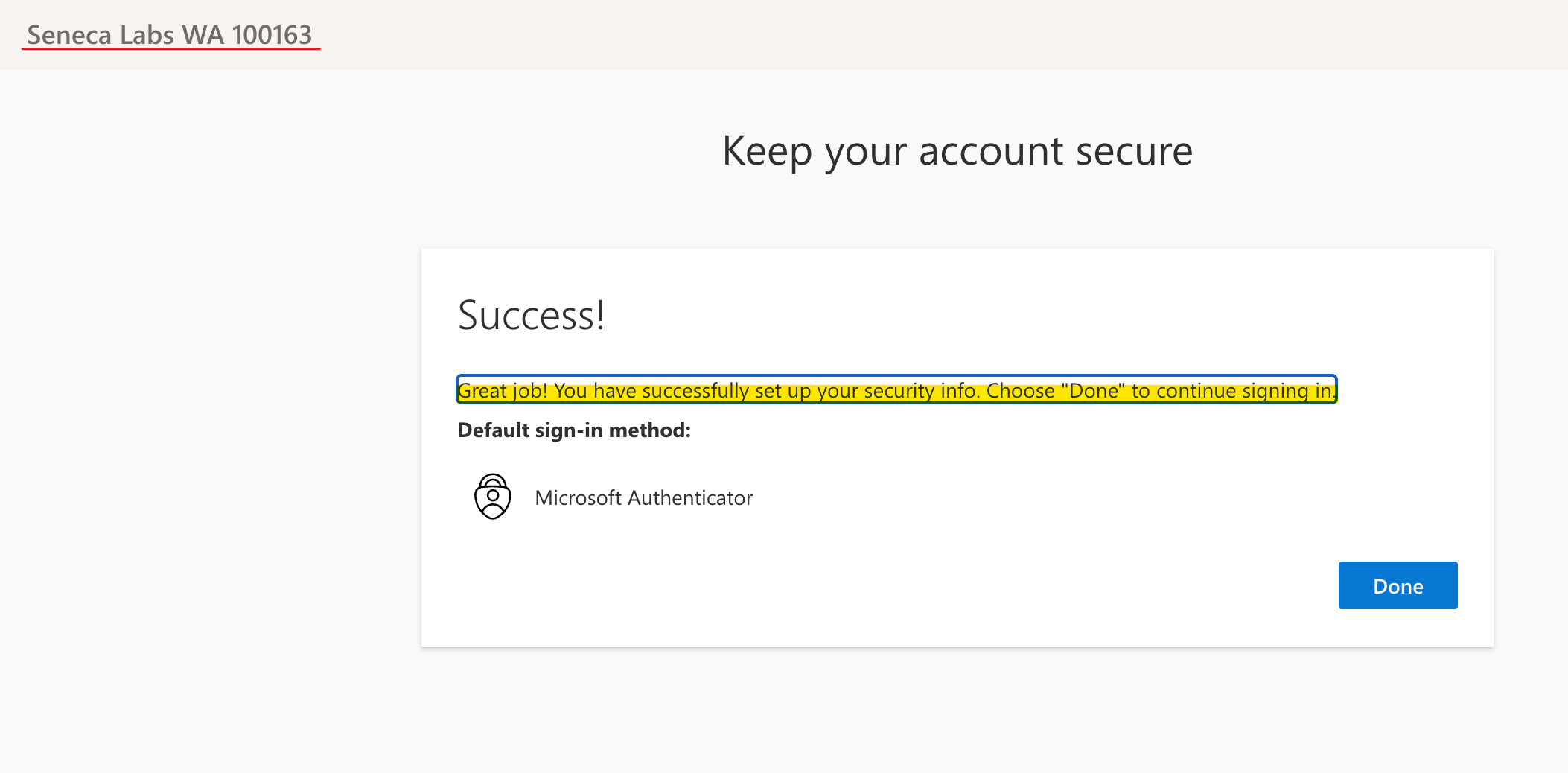
Screenshot must show your Odl_user account, the Additional security verification page for cpoF67-User2 with the authentication method selected
Task 4: Create a Microsoft Entra-based Conditional Access policy for all Azure Virtual Desktop connections 15 pts
Note: In this task, you will configure a Microsoft Entra-based Conditional Access policy that requires MFA to sign in to an Azure Virtual Desktop session. The policy will also enforce reauthentication after the first 4 hours following a successful authentication.
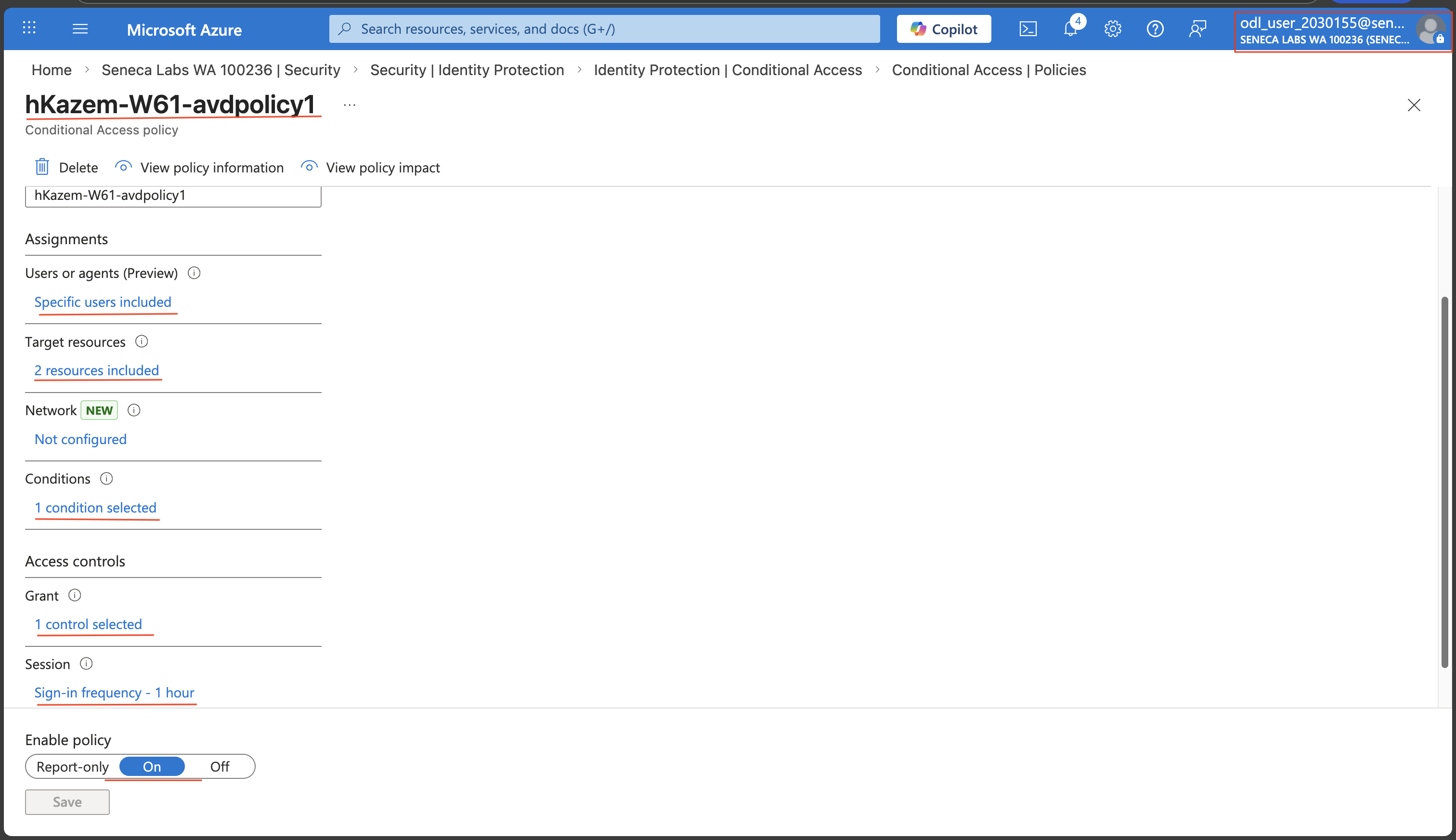
Screenshot must show your Odl_user account, the <studentID>-F67-avdpolicy1 Conditional Access policy requiring multi-factor authentication with 4-hour sign-in frequency and Enable policy set to On
Task 5: Test the Microsoft Entra-based Conditional Access policy for all Azure Virtual Desktop connections 20 pts
Note: Wait until the command completes and all the Azure VMs are running.
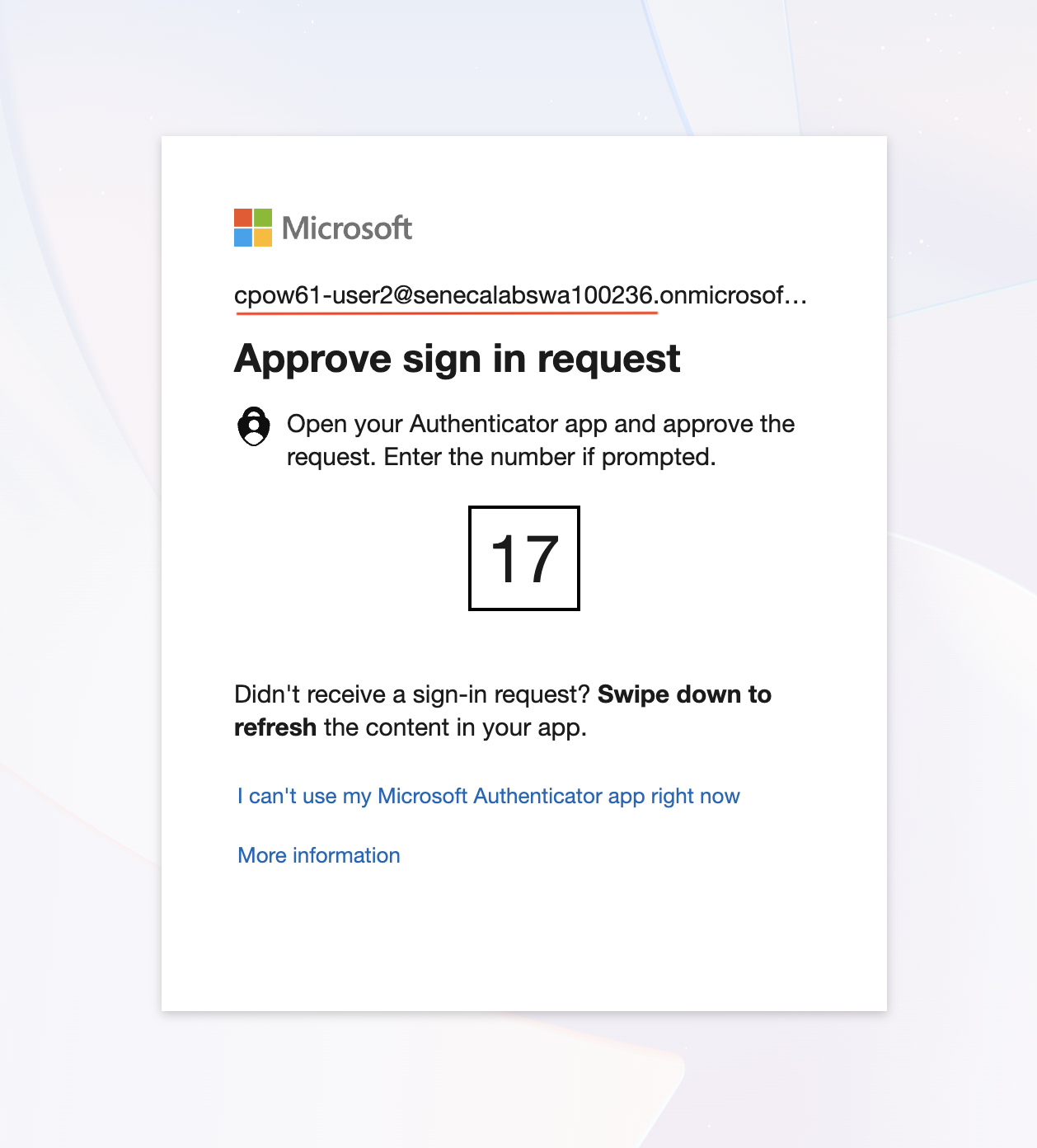
Screenshot must show your Odl_user account, the Azure Virtual Desktop web client MFA authentication prompt
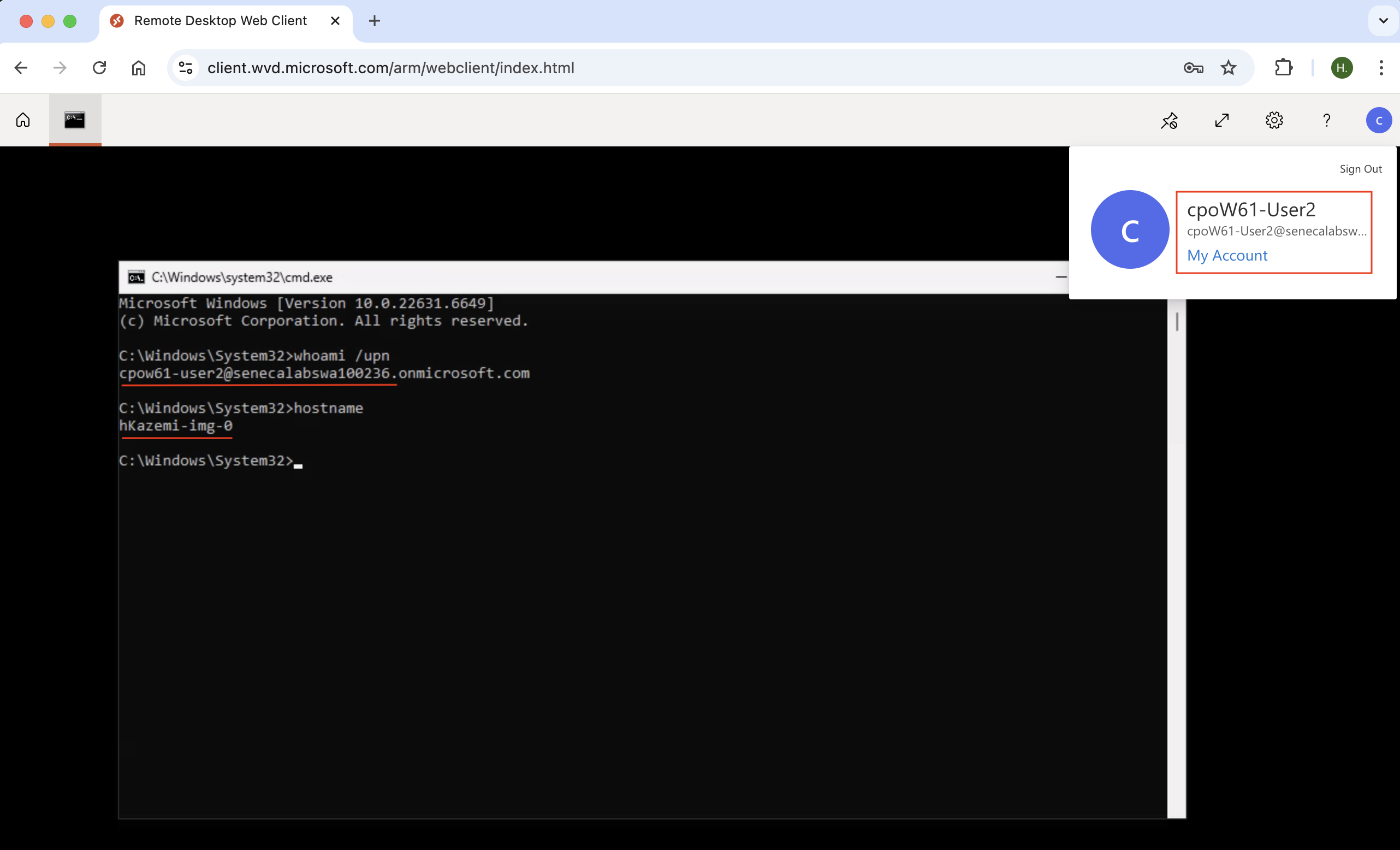
Screenshot must show your Odl_user account, the Command Prompt Remote App launched as cpoF67-User2 with the whoami and hostname output
Task 6: Summary Questions 20 pts
Minimum 2-3 sentences each — original thinking, your own words!
Your submission preview
Screenshots you attach above and your Task 6 answers appear here. This is exactly what prints/exports as your PDF.
CPO550 Lab 08 - Configure Conditional Access policies for AVD
Name: . Account: ·
Professor: Dr. Kazemi
Submit compile & export
Sample screenshots reference
These screenshots are just samples. Your screenshots may vary, but they should include similar details underlined.
Task 1Task 2Task 3Task 4Task 5(s3)Task 5(s7)
Important Lab Cleanup Instructions
Congratulations on completing your final lab for this course! To minimize charges against your Azure credits, delete all your resources. You can do this efficiently by deleting your individual Resource Groups. Note: Do NOT delete the default resource group: ODL-seneca-lab.

 Screenshot, capture your lab progress and attach the screenshot right on this page. Add a short explanation for each. For better visibility, don't take screenshots in dark mode.